Checking Context
Some tools let you see what’s actually in the context window. Checking context regularly—not just when things go wrong—helps you stay aware of what the model is working with.
What You See
The context window contains everything the model processes when generating a response:
- The system prompt (often hidden by default)
- Conversation history
- Tool outputs and file contents
- Summaries from prior compactions
When the model produces unexpected output, inspecting context often reveals why—a stale summary, a hallucinated file path that was never corrected, or instructions that contradicted each other.
But checking context proactively is even more valuable. Before starting a complex task, a quick check confirms you have the right setup. Between tasks, it shows whether residual context from previous work might interfere.
Example
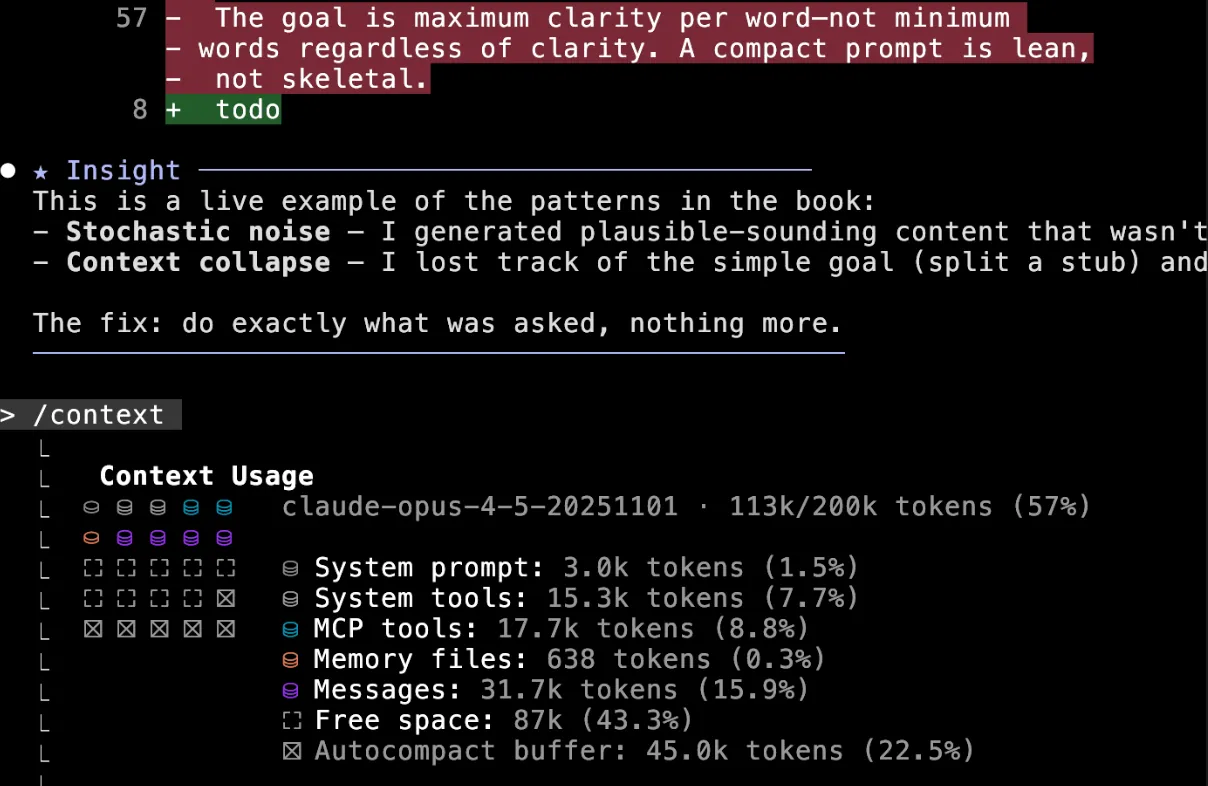
In Claude Code, the /context command shows exactly what’s consuming context:
- System prompt: Base instructions
- System tools: Built-in tool definitions
- MCP tools: External tool definitions
- Memory files: CLAUDE.md and other loaded files
- Messages: The actual conversation
- Free space: Room for more conversation
- Autocompact buffer: Reserved space for automatic compaction
In this example, after a mistake that generated noise, the context was 57% full. The breakdown revealed accumulated message tokens from failed attempts—a signal that clearing would produce better results than continuing.
Why It Matters
The model responds to what’s in context, not what you intended to put there. Checking context closes the gap between “what I think the model sees” and “what the model actually sees.”
This is particularly useful before clearing or compacting—you can verify whether context is salvageable or too polluted to work with.